

HTML Beyond the Basics: SEO, Accessibility, Performance, DOM and Shadow DOM — A Developer's Guide
Introduction
When we talk about HTML, most developers immediately think about elements such as div, section, header, footer, input and button.
Knowing these elements is important, but writing HTML for a production application involves much more than knowing which tag to use.
Have you ever wondered:
- Why can two websites with identical designs perform differently?
- Why can a screen reader understand one website but struggle with another?
- How does the browser convert HTML into something we can interact with?
- Why do some websites appear correctly in search results while others do not?
- How do modern component-based applications isolate their HTML and CSS?
- Why can an incorrectly implemented image or script affect the entire page's performance?
These questions lead us to some important HTML concepts that are often overlooked when learning frontend development.
In this article, we will explore HTML from a real-world development perspective, focusing on:
- How browsers process HTML and construct the DOM.
- Semantic HTML and its impact on accessibility and SEO.
- Advanced accessibility and ARIA.
- HTML performance optimization.
- SEO fundamentals and structured data.
- Shadow DOM and Web Components.
- Practical implementation and common mistakes.
The goal is to understand not only how to write HTML, but also why certain implementation decisions matter in production applications.
1. Understanding How Browsers Process HTML
Before exploring performance, SEO and accessibility, we need to understand what happens when a browser receives an HTML document.
HTML is not directly displayed as a webpage. The browser first needs to parse and process it.
1.1 From HTML to DOM
Consider the following HTML:
<!DOCTYPE html>
<html lang="en">
<head>
    <title>Online Bookstore</title>
</head>
<body>
    <header>
        <h1>Welcome to BookNest</h1>
    </header>

    <main>
        <section>
            <h2>Featured Books</h2>
            <p>Explore our latest collection.</p>
        </section>
    </main>
</body>
</html>
When the browser receives this document, it performs several operations.
Step 1: HTML parsing
The browser reads the HTML and identifies elements, attributes and text.
Step 2: Tokenization
The HTML tokenizer converts the input into tokens representing start tags, end tags, text and other constructs.
Step 3: DOM construction
The parser uses these tokens to construct a tree of nodes called the Document Object Model.
Conceptually, the resulting structure looks like this:
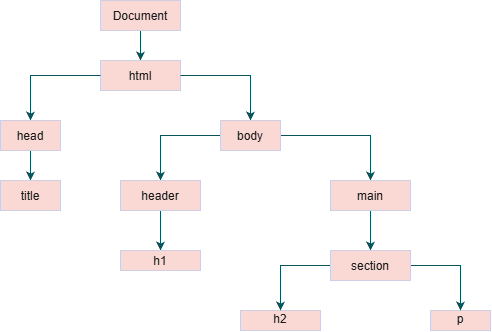
The DOM represents the document in a structure that JavaScript can access and modify.
For example:
const heading = document.querySelector("h1");
heading.textContent = "Explore BookNest";
This changes the heading in the DOM without requiring the browser to download a completely new HTML document.
1.2 DOM vs CSSOM
The browser also processes CSS and constructs another representation called the CSS Object Model (CSSOM).
Consider:
h1 {
    color: blue;
    font-size: 32px;
}
The browser parses these styles and determines how they apply to the elements.
The DOM describes the document structure, while the CSSOM describes the CSS rules and their relationships.
The browser combines relevant DOM and CSSOM information to calculate styles and build the rendering tree.
A simplified rendering process is:
- HTML parsing and DOM construction.
- CSS parsing and CSSOM construction.
- Render tree construction.
- Layout calculation.
- Painting.
- Compositing.
These operations can overlap and repeat as the page changes.
Why should frontend developers understand this?
Because the way we write HTML, load CSS, execute JavaScript and load resources can affect how quickly users see and interact with a webpage.
This becomes especially important when optimizing Core Web Vitals and real-world page performance.
2. Semantic HTML: More Than Just Meaningful Tags
Semantic HTML means choosing elements based on their meaning and purpose rather than selecting elements only for their appearance.
Consider two implementations.
Non-semantic implementation:
<div class="header">
    <div class="logo">BookNest</div>

    <div class="navigation">
        <div>Home</div>
        <div>Books</div>
        <div>Contact</div>
    </div>
</div>
Semantic implementation:
<header>
    <a href="/" class="logo">BookNest</a>

    <nav aria-label="Main navigation">
        <ul>
            <li><a href="/">Home</a></li>
            <li><a href="/books">Books</a></li>
            <li><a href="/contact">Contact</a></li>
        </ul>
    </nav>
</header>
Both implementations can produce the same visual design.
However, their meaning to browsers and assistive technologies is different.
The semantic version communicates that:
- The page has a header.
- The links belong to a navigation region.
- The navigation items form a list.
- Each anchor represents a navigable destination.
2.1 Why semantic HTML matters
Accessibility
Assistive technologies use semantic information to help users understand and navigate webpages.
For example, screen-reader users can navigate directly between important landmarks such as:
- Banner/header
- Navigation
- Main content
- Complementary content
- Footer/content information
Without meaningful HTML structure, navigating a large webpage can become difficult.
SEO
Search engines need to understand the structure and purpose of webpage content.
Semantic HTML helps establish meaningful content relationships.
For example:
<main>
    <article>
        <h1>Best JavaScript Books for Beginners</h1>
        <p>
            Discover useful books for learning JavaScript.
        </p>
    </article>
</main>
This provides a clearer document structure than using generic containers for everything.
Semantic HTML does not automatically improve search rankings, but it contributes to a well-structured and understandable webpage.
Maintainability
Imagine working on a large e-commerce application with hundreds of components.
If every component uses generic div elements, understanding the document structure becomes difficult.
Meaningful elements make code easier to understand, review and maintain.
2.2 Choosing the correct semantic element
Developers often confuse section, article and div.
Consider a bookstore:
<main>
    <section aria-labelledby="featured-heading">

        <h2 id="featured-heading">
            Featured Books
        </h2>

        <article>
            <h3>JavaScript for Beginners</h3>
            <p>Learn JavaScript fundamentals.</p>
        </article>

        <article>
            <h3>React Development</h3>
            <p>Learn modern React development.</p>
        </article>

    </section>
</main>
Here:
mainrepresents the primary page content.sectiongroups related featured books.- Each
articlerepresents a self-contained content item.
Use div when you need a generic container for styling or layout and no more meaningful element is appropriate.
Real-world application: In e-commerce websites, semantic structure is useful for product listings, product descriptions, reviews, navigation and checkout sections.
3. Accessibility: Building Websites Everyone Can Use
Accessibility is not an optional enhancement. It is an important part of frontend development.
A website should be usable by people with different abilities, including people who:
- Navigate using keyboards.
- Use screen readers.
- Have visual impairments.
- Have motor disabilities.
- Have cognitive disabilities.
A website that works only with a mouse and normal vision is not accessible to everyone.
3.1 How browsers expose accessibility information
Browsers expose information about webpage elements through an accessibility tree.
This tree communicates information such as:
- Role: What kind of element is this?
- Name: What is this element called?
- Value: What value does it contain?
- State: Is it checked, disabled or expanded?
For example:
<button type="button">
    Add to Cart
</button>
The browser exposes this as a button with the accessible name "Add to Cart".
Now consider:
<div onclick="addToCart()">
    Add to Cart
</div>
The second example is a generic element with click behaviour. It does not automatically provide native button semantics or keyboard interaction.
This is why using native HTML elements is important.
3.2 Accessible forms
Forms are one of the most common places where accessibility problems occur.
Consider this implementation:
<p>Email Address</p>
<input type="email" placeholder="Enter email">
There are two problems:
- The paragraph is not programmatically associated with the input.
- The placeholder is being used instead of a proper label.
A better implementation:
<label for="email">
    Email Address
</label>

<input
    type="email"
    id="email"
    name="email"
    autocomplete="email"
    required
>
The for attribute connects the label to the input through its id.
When a user clicks the label, the corresponding input receives focus.
Screen readers can also identify the input using its associated label.
3.3 Grouping related form controls
Consider a registration form with multiple personal information fields.
<fieldset>
    <legend>Personal Information</legend>

    <label for="name">Full Name</label>
    <input
        type="text"
        id="name"
        name="name"
        required
    >

    <label for="email">Email</label>
    <input
        type="email"
        id="email"
        name="email"
        required
    >
</fieldset>
fieldset groups related controls, while legend provides a description for the group.
This is particularly useful for forms containing radio buttons, payment preferences and delivery options.
3.4 Keyboard accessibility
Not every user interacts with a webpage using a mouse.
Some users depend entirely on keyboard navigation.
Important keyboard interactions include:
| Key | Behaviour |
|---|---|
| Tab | Move to the next focusable element |
| Shift + Tab | Move to the previous focusable element |
| Enter | Activate links and buttons |
| Space | Activate buttons and interact with certain controls |
| Arrow keys | Navigate within certain controls |
| Escape | Close certain dialogs and widgets |
Always ensure interactive elements can be reached using the keyboard.
Focus indicators are equally important.
:focus-visible {
    outline: 3px solid #2563eb;
    outline-offset: 3px;
}
Avoid removing focus outlines without providing an equally visible alternative.
3.5 Alternative text for images
The alt attribute provides alternative text for images.
<img
    src="javascript-book.jpg"
    alt="Cover of a JavaScript programming book"
>
However, not every image needs descriptive alt text.
For decorative images:
<img
    src="decorative-pattern.png"
    alt=""
>
An empty alt attribute tells assistive technologies that the image can be ignored.
The purpose of alternative text is to communicate the relevant information or function of an image, not simply describe every visual detail.
For example, if an image is a link, its alternative text should communicate the link's purpose.
4. ARIA: Improving Accessibility in Dynamic Applications
ARIA stands for Accessible Rich Internet Applications.
It provides attributes that communicate additional information about elements to assistive technologies.
ARIA is particularly useful when building custom interactive components that do not have an exact native HTML equivalent.
However, ARIA does not automatically implement keyboard behaviour or application functionality.
4.1 aria-label
Provides an accessible name for an element.
Example:
<button aria-label="Close dialog">
    ×
</button>
The visible content is only a symbol. The ARIA label provides a meaningful name.
Another example:
<button aria-label="Search products">
    <svg aria-hidden="true">
        <!-- Search icon -->
    </svg>
</button>
This is useful for icon-only buttons.
4.2 aria-labelledby
Connects an element to another element that provides its accessible name.
<section aria-labelledby="books-heading">

    <h2 id="books-heading">
        Featured Books
    </h2>

    <p>Explore our latest collection.</p>

</section>
The section gets its accessible name from the heading.
4.3 aria-describedby
Connects an element to additional descriptive information.
<label for="password">
    Password
</label>

<input
    type="password"
    id="password"
    aria-describedby="password-help"
>

<p id="password-help">
    Password must contain at least 8 characters.
</p>
This allows assistive technologies to associate the explanatory text with the input.
4.4 aria-expanded and aria-controls
These attributes are useful for expandable components such as dropdowns and accordions.
<button
    aria-expanded="false"
    aria-controls="categories-menu"
>
    Categories
</button>

<ul id="categories-menu" hidden>
    <li><a href="/fiction">Fiction</a></li>
    <li><a href="/programming">Programming</a></li>
</ul>
The button communicates whether its controlled content is expanded.
JavaScript must update the state and show or hide the menu when the button is activated.
4.5 aria-live
One common accessibility problem in dynamic applications is that content can change without the user noticing.
For example, consider an e-commerce cart.
When a user adds a product, the cart count changes dynamically.
<p aria-live="polite" id="cart-status">
    Cart contains 0 items.
</p>
When JavaScript updates this content:
document.querySelector("#cart-status").textContent = "Cart contains 1 item.";
Assistive technologies can announce the update through the live region.
aria-live="polite" generally waits for an appropriate opportunity to announce the change.
Use aria-live="assertive" sparingly for genuinely urgent information because it can interrupt other announcements.
4.6 Important ARIA principle
Prefer native HTML whenever possible.
For example:
<button type="button">
    Submit
</button>
is better than:
<div role="button" tabindex="0">
    Submit
</div>
The native button already provides:
- Button semantics.
- Keyboard interaction.
- Focus behaviour.
- Native disabled-state support.
Adding role="button" to a div does not automatically reproduce these behaviours.
Remember: No ARIA is better than incorrect ARIA.
5. HTML Performance Optimization
Performance is not determined only by JavaScript and CSS. The way we structure HTML and load resources also influences page performance.
Poor HTML implementation can increase resource loading time, delay rendering and negatively affect user experience.
Let's explore practical optimizations.
5.1 Optimize images
Images are often among the largest resources on an e-commerce webpage.
Consider:
<img src="large-product-image.png">
This implementation has several potential issues:
- The image may be unnecessarily large.
- There are no explicit dimensions.
- The browser does not know the intended display size.
- The image may not be optimized for the device.
A better implementation:
<img
    src="book-400.webp"
    srcset="
        book-400.webp 400w,
        book-800.webp 800w,
        book-1200.webp 1200w
    "
    sizes="
        (max-width: 600px) 100vw,
        (max-width: 1000px) 50vw,
        400px
    "
    width="400"
    height="600"
    alt="JavaScript programming book"
    loading="lazy"
    decoding="async"
>
Let's understand these attributes.
src: Default image resource.
srcset: Provides multiple image candidates for different display and resolution requirements.
sizes: Helps the browser determine the expected image display size when selecting a candidate from srcset.
width and height: Provide intrinsic dimensions and help the browser reserve space before the image loads.
loading="lazy": Defers loading of an off-screen image until it approaches the viewport.
decoding="async": Allows image decoding to happen asynchronously where supported.
Why should we use lazy loading?
Imagine an e-commerce category page displaying 100 products.
Without lazy loading, the browser may start downloading many images that users never scroll down to see.
With lazy loading:
<img
    src="product-1.webp"
    alt="Product image"
    loading="lazy"
    width="300"
    height="400"
>
The browser can defer loading images that are not immediately needed.
Important: Do not lazy-load your main above-the-fold hero image or likely Largest Contentful Paint image. It should generally be discoverable and loaded promptly.
For an important hero image, consider:
<img
    src="hero.webp"
    alt="Explore our latest book collection"
    width="1200"
    height="500"
    fetchpriority="high"
>
Use high fetch priority selectively, not on every image.
5.2 Reduce layout shifts
Have you ever opened a website and noticed content moving suddenly while the page is loading?
This is known as layout shift.
For example:
- Text appears.
- An image loads later.
- The image takes up space.
- The content below moves downward.
This can negatively affect Cumulative Layout Shift (CLS).
A simple improvement:
<img
    src="product.webp"
    alt="Book cover"
    width="400"
    height="600"
>
Providing image dimensions allows the browser to reserve the appropriate aspect ratio before the image is downloaded.
For responsive layouts, CSS can control the final dimensions:
.product-image {
    width: 100%;
    height: auto;
}
The important principle is to reserve the space needed by asynchronously loaded content.
5.3 Script loading: async vs defer
JavaScript loading is another important performance consideration.
Consider:
<script src="app.js"></script>
A normal classic script without special attributes can block HTML parsing while it is fetched and executed.
There are two commonly used attributes that change this behaviour.
defer
<script src="app.js" defer></script>
With defer:
- The browser downloads the script while parsing HTML.
- Script execution waits until HTML parsing is complete.
- Deferred classic scripts execute in document order.
- They execute before the DOMContentLoaded event.
This is useful for scripts that depend on the parsed HTML structure.
async
<script src="analytics.js" async></script>
With async:
- The browser downloads the script asynchronously.
- The script executes as soon as it is available.
- Execution order is not guaranteed.
- It may interrupt HTML parsing during execution.
This is useful for independent scripts that do not depend on other scripts or a particular DOM execution order.
Difference between async and defer
| defer | async |
|---|---|
| Executes after HTML parsing | Executes when downloaded |
| Preserves order among deferred classic scripts | Does not preserve execution order |
| Runs before DOMContentLoaded | May execute before or after DOMContentLoaded |
| Useful for DOM-dependent scripts | Useful for independent scripts |
For scripts using JavaScript modules, remember that module scripts are deferred by default unless configured otherwise.
5.4 Resource hints
Browsers provide resource hints that can help optimize loading.
Preconnect
<link rel="preconnect" href="https://fonts.googleapis.com">
This tells the browser to establish an early connection to an external origin.
It can reduce connection setup time for resources that will be needed soon.
Preload
<link
    rel="preload"
    href="/fonts/inter.woff2"
    as="font"
    type="font/woff2"
    crossorigin
>
Preload tells the browser to fetch an important resource early.
It is useful for resources that are discovered late but are critical to the initial rendering experience.
However, unnecessary preloading can compete with more important resources.
Prefetch
<link
    rel="prefetch"
    href="/next-page.html"
>
Prefetch requests a resource that may be needed for a future navigation.
It is generally a lower-priority hint and should be used when future navigation is reasonably likely.
5.5 Core Web Vitals
Core Web Vitals are Google metrics used to evaluate important aspects of user experience.
The three main metrics are:
| Metric | What it measures | Good target |
|---|---|---|
| LCP | Loading performance | 2.5 seconds or less |
| INP | Interaction responsiveness | 200 milliseconds or less |
| CLS | Visual stability | 0.1 or less |
These targets are evaluated at the 75th percentile of page visits.
LCP — Largest Contentful Paint
Measures when the largest relevant content element becomes visible.
HTML-related improvements include optimizing the hero image, ensuring important resources are discoverable and avoiding lazy loading of the LCP image.
INP — Interaction to Next Paint
Measures responsiveness to user interactions.
HTML-related improvements include using appropriate native controls and avoiding unnecessarily complex custom interactions. JavaScript performance also plays a major role.
CLS — Cumulative Layout Shift
Measures unexpected layout movement.
HTML-related improvements include specifying image dimensions and reserving space for dynamic content.
Performance is a combination of HTML, CSS, JavaScript, network behaviour, rendering and server response. No single HTML attribute guarantees a fast website.
6. SEO: Making HTML Understandable to Search Engines
SEO stands for Search Engine Optimization.
Search engines need to discover, crawl, understand and potentially index webpage content.
HTML provides several important signals that help with this process.
6.1 Title and meta description
<head>
    <title>
        Best Programming Books | BookNest
    </title>

    <meta
        name="description"
        content="Discover programming books for beginners and experienced developers."
    >
</head>
The title helps identify the page topic and can appear as the search result title.
The meta description provides a summary that search engines may use in search result snippets.
Use unique, meaningful titles and descriptions for important pages.
6.2 Heading hierarchy
<main>
    <h1>Programming Books</h1>

    <section>
        <h2>JavaScript Books</h2>
        <p>Explore JavaScript learning resources.</p>
    </section>

    <section>
        <h2>React Books</h2>
        <p>Explore React development resources.</p>
    </section>
</main>
Headings organize content into meaningful sections.
They help users, assistive technologies and search engines understand the page structure.
Do not choose headings based only on their default font size.
6.3 Canonical URLs
Duplicate URLs can create challenges for search engines.
Consider:
example.com/books
example.com/books?sort=popular
example.com/books?category=programming
Depending on the content and indexing strategy, you may want to identify a preferred version.
<link
    rel="canonical"
    href="https://example.com/books"
>
A canonical URL indicates the preferred URL for a page among duplicate or substantially similar versions.
Canonicalization is a signal, not an absolute guarantee that a search engine will select that URL.
6.4 Robots meta tag
The robots meta tag communicates indexing and crawling preferences to search engines.
<meta name="robots" content="index, follow">
For a page that should not appear in search results:
<meta name="robots" content="noindex, follow">
Be careful when using noindex because it prevents eligible search engines from indexing the page.
It is not a security mechanism. Sensitive pages must be protected through authentication and authorization.
6.5 Open Graph metadata
Open Graph metadata controls how a webpage is represented when shared on supported social platforms.
<meta property="og:title" content="BookNest - Online Bookstore">

<meta
    property="og:description"
    content="Discover your next favourite book."
>

<meta
    property="og:image"
    content="https://example.com/images/bookstore-banner.jpg"
>

<meta
    property="og:url"
    content="https://example.com"
>

<meta property="og:type" content="website">
Without appropriate metadata, social platforms may choose unsuitable images or descriptions.
This is particularly useful for blogs, product pages and landing pages.
6.6 Structured data using JSON-LD
Structured data gives search engines additional information about the content of a webpage.
For example, an e-commerce product can be described using Schema.org vocabulary.
<script type="application/ld+json">
{
    "@context": "https://schema.org",
    "@type": "Product",
    "name": "JavaScript for Beginners",
    "description": "A beginner-friendly JavaScript book.",
    "image": "https://example.com/images/javascript-book.jpg"
}
</script>
This helps search engines understand that the content describes a product.
Structured data may make a page eligible for enhanced search appearances when it satisfies the relevant requirements.
However, adding structured data does not guarantee rich results.
Always ensure the structured data accurately represents the visible page content.
6.7 Crawlable links
Search engines discover many pages by following links.
Prefer meaningful anchor elements:
<a href="/books/javascript">
    Explore JavaScript Books
</a>
Avoid using a clickable div as a replacement for navigation.
Links should have real destinations and descriptive text.
For client-rendered applications, ensure important page content and navigation are discoverable by search engines. Server-side rendering or prerendering can help when appropriate.
7. Shadow DOM: Understanding HTML Encapsulation
Shadow DOM is one of the most interesting browser features in modern frontend development.
It is part of the Web Components platform and allows developers to create an encapsulated DOM subtree inside an element.
But why do we need it?
Imagine developing a large application containing:
- Product cards.
- Search components.
- Navigation menus.
- Custom dropdowns.
- Payment widgets.
- Reusable design-system components.
Different components may use the same CSS class names.
For example:
.button {
    background: blue;
}
If several components use .button, styles may unintentionally affect one another.
Shadow DOM helps solve this type of problem by providing style and DOM encapsulation.
7.1 What is Shadow DOM?
Shadow DOM allows a component to attach a separate DOM subtree, called a shadow tree, to a host element.
Consider:
<div id="book-card"></div>
Using JavaScript:
const host = document.querySelector("#book-card");

const shadowRoot = host.attachShadow({
    mode: "open"
});

shadowRoot.innerHTML = `
    <style>
        .card {
            padding: 20px;
            border: 1px solid #ddd;
        }

        .title {
            color: blue;
        }
    </style>

    <div class="card">
        <h2 class="title">
            JavaScript for Beginners
        </h2>
    </div>
`;
The book-card element becomes the shadow host.
The DOM created inside attachShadow() belongs to its shadow tree.
7.2 How is Shadow DOM different from regular DOM?
| Regular DOM | Shadow DOM |
|---|---|
| Part of the document tree | Separate encapsulated subtree |
| Global CSS can affect elements | Styles are generally scoped to the shadow tree |
| Accessible through normal document queries | Accessed through the shadow root when open |
| No automatic component encapsulation | Provides component-level encapsulation |
For example:
document.querySelector(".title");
This query does not normally search inside a shadow root.
For an open shadow root:
const host = document.querySelector("#book-card");

const title = host.shadowRoot.querySelector(".title");
The shadow root is accessible through host.shadowRoot when its mode is open.
7.3 Open vs Closed Shadow DOM
Shadow roots can be created using two modes.
Open:
const shadowRoot = element.attachShadow({
    mode: "open"
});
The shadow root can be accessed through:
element.shadowRoot;
Closed:
const shadowRoot = element.attachShadow({
    mode: "closed"
});
The root is not exposed through the host's shadowRoot property.
However, closed mode is not a security boundary. It does not guarantee that internal implementation details cannot be accessed.
7.4 Shadow DOM and CSS encapsulation
Consider:
.title {
    color: red;
}
This global CSS rule generally does not select elements inside a shadow tree.
The component can define its own styles:
shadowRoot.innerHTML = `
    <style>
        .title {
            color: green;
        }
    </style>

    <h2 class="title">Book Details</h2>
`;
This reduces accidental style conflicts between components.
However, Shadow DOM is not complete style isolation. Some inherited properties, CSS custom properties, and intentionally exposed styling interfaces can cross or influence boundaries.
7.5 What are slots?
Slots allow a Web Component to accept content supplied by its parent.
Example:
<book-card>
    <span slot="title">
        JavaScript for Beginners
    </span>

    <p>
        Learn JavaScript step by step.
    </p>
</book-card>
Inside the component's shadow tree:
<div class="card">
    <h2>
        <slot name="title"></slot>
    </h2>

    <slot></slot>
</div>
The named slot receives the element with slot="title".
The unnamed slot receives the remaining slotted content.
This makes components reusable while allowing parent pages to provide their content.
7.6 Shadow DOM vs Virtual DOM
These two concepts are often confused.
| Shadow DOM | Virtual DOM |
|---|---|
| Browser platform feature | Rendering technique used by some UI libraries |
| Provides DOM encapsulation | Represents UI in an in-memory structure |
| Used in Web Components | Used by frameworks such as React |
| Helps isolate component internals | Helps manage UI updates |
React does not require Shadow DOM to create reusable components.
Shadow DOM is especially useful when building reusable browser-native components, design systems and widgets that need encapsulation across different applications.
8. Web Components: Custom Elements + Shadow DOM
Shadow DOM is often used together with Custom Elements.
Custom Elements allow developers to define their own HTML elements.
For example:
<book-card></book-card>
We can create this custom element using JavaScript.
class BookCard extends HTMLElement {

    constructor() {
        super();

        const shadow = this.attachShadow({
            mode: "open"
        });

        shadow.innerHTML = `
            <style>
                .card {
                    border: 1px solid #ddd;
                    padding: 20px;
                    border-radius: 8px;
                }

                h2 {
                    color: blue;
                }
            </style>

            <div class="card">
                <h2>JavaScript for Beginners</h2>
                <p>Learn JavaScript fundamentals.</p>
            </div>
        `;
    }
}

customElements.define("book-card", BookCard);
Now use it:
<book-card></book-card>
The browser recognizes the custom element and creates its component structure.
Where are Web Components useful?
- Design systems.
- Reusable UI libraries.
- Embedded widgets.
- Components shared between different frameworks.
- Browser-native component development.
They can be particularly valuable when a component must work independently of React, Angular or Vue.
9. Common HTML Mistakes in Production Applications
Knowing HTML syntax is not enough. Developers should understand the consequences of incorrect implementations.
Incorrect:
<div onclick="navigateToBooks()">
    Books
</div>
Better:
<a href="/books">
    Books
</a>
Use the element that matches the actual behaviour.
Mistake 2: Using placeholders instead of labels
Incorrect:
<input
    type="email"
    placeholder="Enter email"
>
Better:
<label for="email">Email</label>

<input
    type="email"
    id="email"
    placeholder="example@gmail.com"
>
Placeholders should provide examples or hints, not replace labels.
Mistake 3: Lazy-loading the hero image
Incorrect:
<img
    src="hero.webp"
    loading="lazy"
    alt="Book collection"
>
If this is the main above-the-fold image and likely LCP element, lazy loading can delay its appearance.
Better:
<img
    src="hero.webp"
    fetchpriority="high"
    width="1200"
    height="500"
    alt="Explore our latest book collection"
>
Use this priority only when justified by the page's loading behaviour.
Mistake 4: Removing keyboard focus outlines
Incorrect:
*:focus {
    outline: none;
}
Better:
:focus-visible {
    outline: 3px solid blue;
    outline-offset: 3px;
}
Mistake 5: Misusing ARIA
Incorrect:
<div role="button">
    Submit
</div>
Better:
<button type="submit">
    Submit
</button>
Mistake 6: Depending only on frontend validation
HTML validation improves user experience but does not protect the backend.
Users can bypass frontend validation.
Always validate submitted data on the server.
Mistake 7: Ignoring image dimensions
Images without reserved dimensions can contribute to unexpected layout shifts.
Provide appropriate width and height attributes.
Mistake 8: Using incorrect canonical URLs
A canonical URL should represent the preferred version of the actual page content.
Incorrect canonicalization can cause search engines to select an unintended URL.
10. Practical Implementation: Putting Everything Together
Now let's combine the concepts into a single HTML document.
This example demonstrates semantic structure, SEO metadata, accessible navigation, optimized images and proper resource loading.
<!DOCTYPE html>
<html lang="en">
<head>
<meta charset="UTF-8">
<meta
name="viewport"
content="width=device-width, initial-scale=1.0"
>
<title>BookNest | Programming Books</title>
<meta
name="description"
content="Discover programming books for developers and beginners."
>
<link
rel="canonical"
href="https://example.com/books"
>
<meta
property="og:title"
content="BookNest | Programming Books"
>
<meta
property="og:description"
content="Explore programming books."
>
<meta
property="og:image"
content="https://example.com/images/book-banner.webp"
>
<link
rel="preconnect"
href="https://fonts.googleapis.com"
>
<link
rel="stylesheet"
href="/css/style.css"
>
<script src="/js/app.js" defer></script>
</head>
<body>
<header>
<a href="/" aria-label="BookNest home">
BookNest
</a>
<nav aria-label="Main navigation">
<ul>
<li><a href="/">Home</a></li>
<li><a href="/books">Books</a></li>
<li><a href="/about">About</a></li>
</ul>
</nav>
</header>
<main>
<section aria-labelledby="hero-heading">
<h1 id="hero-heading">
Discover Your Next Favourite Book
</h1>
<p>
Explore books that help you learn and grow.
</p>
<a href="/books">
Explore Books
</a>
<img
src="/images/book-banner.webp"
width="1200"
height="500"
fetchpriority="high"
alt="Collection of programming books"
>
</section>
<section aria-labelledby="featured-heading">
<h2 id="featured-heading">
Featured Books
</h2>
<article>
<img
src="/images/javascript-book.webp"
width="300"
height="400"
loading="lazy"
alt="JavaScript programming book cover"
>
<h3>JavaScript for Beginners</h3>
<p>
Learn JavaScript fundamentals.
</p>
<a href="/books/javascript">
View Book
</a>
</article>
</section>
</main>
<footer>
<p>
© 2026 BookNest.
</p>
<a href="/contact">
Contact Us
</a>
</footer>
</body>
</html>
This is a starting point rather than a complete production implementation. A production page also needs appropriate responsive styling, working routes, optimized assets, server configuration and tested accessibility.
11. How to Test HTML Quality
Writing good HTML is only part of the job. We should also verify its quality.
Here are useful tools for frontend developers.
1. W3C HTML Validator
Use it to identify:
- Invalid HTML.
- Incorrect nesting.
- Missing required attributes.
- Markup errors.
2. Google Lighthouse
Available inside Chrome DevTools.
It helps evaluate:
- Performance.
- Accessibility.
- Best Practices.
- SEO.
Lighthouse scores are diagnostic indicators, not proof that a website is completely accessible or search-optimized.
3. Chrome DevTools
Use the Elements panel to inspect the DOM and the Performance panel to investigate rendering and loading issues.
You can also inspect the accessibility information exposed for individual elements.
4. WAVE
Useful for identifying potential accessibility issues such as missing labels, contrast problems and structural concerns.
Automated accessibility tools cannot detect every accessibility problem. Manual keyboard and screen-reader testing are still important.
5. PageSpeed Insights
Use it to understand Core Web Vitals and performance opportunities using available lab and field data.
12. Real-World Applications: Where These Concepts Matter
Let's connect everything to actual frontend development.
| Concept | Real-world application |
|---|---|
| Semantic HTML | E-commerce and content websites |
| DOM | Dynamic page updates |
| Accessibility | Registration, checkout and dashboards |
| ARIA | Dropdowns, dialogs and live notifications |
| Image optimization | Product listing and landing pages |
| Script loading | Faster page initialization |
| Core Web Vitals | E-commerce performance |
| SEO metadata | Product and category pages |
| Structured data | Product and article search appearances |
| Shadow DOM | Reusable components and widgets |
| Web Components | Framework-independent design systems |
For example, consider an e-commerce product listing page.
A good implementation should:
- Use semantic HTML to structure product information.
- Provide meaningful product image alternatives.
- Make product links and buttons keyboard-accessible.
- Optimize images using responsive image techniques.
- Prevent layout shifts by reserving image space.
- Provide meaningful page metadata.
- Make product information discoverable by search engines.
- Use appropriate dynamic accessibility announcements when cart content changes.
This demonstrates how HTML decisions influence several aspects of the same application.
13. Test Your Knowledge
Here are 15 questions that test practical understanding rather than just definitions.
Q1. What happens when a browser parses HTML?
The browser tokenizes the HTML, constructs the DOM tree and processes related resources. It also parses CSS into the CSSOM, calculates styles and renders the page.
Q2. What is the difference between DOM and CSSOM?
DOM represents document structure and content. CSSOM represents CSS rules and their relationships.
Q3. How does semantic HTML improve accessibility?
It exposes meaningful roles, landmarks and relationships that assistive technologies can use to navigate and understand content.
Q4. What is the accessibility tree?
It is the browser-exposed representation of accessibility information, including roles, names, states and values.
Q5. What is the difference between aria-label and aria-labelledby?
aria-label directly provides an accessible name. aria-labelledby references one or more existing elements whose text provides the name.
Q6. What is aria-live used for?
It communicates dynamically updated content to assistive technologies, such as cart updates and form submission messages.
Q7. What is the difference between async and defer?
Both allow script downloading without waiting for HTML parsing to finish. defer executes after parsing in document order, while async executes as soon as the script is available without guaranteed order.
Q8. Why should image width and height be specified?
They allow the browser to reserve image space, reducing unexpected layout shifts.
Q9. When should you use loading="lazy"?
For images that are below the fold or otherwise not immediately needed. It should generally not be used for the main LCP image.
Q10. What is fetchpriority?
It provides a hint about the relative loading priority of a resource, such as an important hero image.
Q11. What are Core Web Vitals?
They are user-experience metrics: LCP for loading, INP for interaction responsiveness and CLS for visual stability.
Q12. What is canonical URL?
It identifies the preferred URL for duplicate or substantially similar pages.
Q13. What is structured data?
It is machine-readable information describing page content using vocabularies such as Schema.org.
Q14. What is Shadow DOM?
It is a browser feature that allows an encapsulated DOM subtree to be attached to a host element, providing component-level DOM and styling boundaries.
Q15. What is the difference between Shadow DOM and Virtual DOM?
Shadow DOM is a browser-native encapsulation feature. Virtual DOM is an in-memory UI representation used by certain libraries and frameworks to manage updates.
14. My Understanding: What Every Frontend Developer Should Take Away
After exploring these concepts, one important thing becomes clear: HTML is not simply about writing elements and arranging content.
Every HTML decision can influence how a browser interprets a document, how a screen reader communicates information, how search engines discover content and how efficiently the page loads.
Semantic HTML provides a meaningful foundation. Accessibility makes the application usable by more people. SEO helps search engines understand the content. Performance optimization ensures that users can access the content efficiently.
Shadow DOM and Web Components introduce another dimension by allowing developers to build reusable, encapsulated browser-native components.
These concepts are especially important when working on large applications, e-commerce platforms and component-based frontend architectures.
Instead of asking only, "Does this HTML produce the expected UI?", developers should also ask:
- Is the structure meaningful?
- Can everyone interact with it?
- Can search engines understand the content?
- Are resources loading efficiently?
- Can components be reused without unnecessary conflicts?
- Does the implementation work reliably across browsers?
That is the difference between simply writing HTML and engineering a production-ready frontend.
Conclusion
HTML remains one of the most important foundations of frontend development.
Although modern frameworks provide component architectures and rendering abstractions, they do not eliminate the importance of understanding the browser's native HTML capabilities.
A developer who understands HTML deeply can make better decisions about accessibility, performance, SEO, reusable components and maintainability.
The next time you build a webpage, don't focus only on how it looks.
Focus on how it works, how the browser interprets it and how every user experiences it.
Good frontend development starts with good HTML.
Comments
Join the discussionGreat one, very informative